Codequiry Help Center
How can we help?
Search an answer or use a tool below. Everything here works on your own, any time.
Fix it yourself in a minute
These work any time, day or night.
Getting started
Run your first check Signed in
- Sign in. Your dashboard opens on the New assignment panel.
- Drop in your students' work, one ZIP per student (see Uploading files).
- Give it a name, choose what to compare against (each other, the web, GitHub and more), and leave Language on Auto detect.
- Press Upload & instant scan. Each file gets a quick HyperScan on the way in, so early leads are waiting.
- Open the check and press Start Full Check. It takes a few minutes, and you can leave the page while it runs.
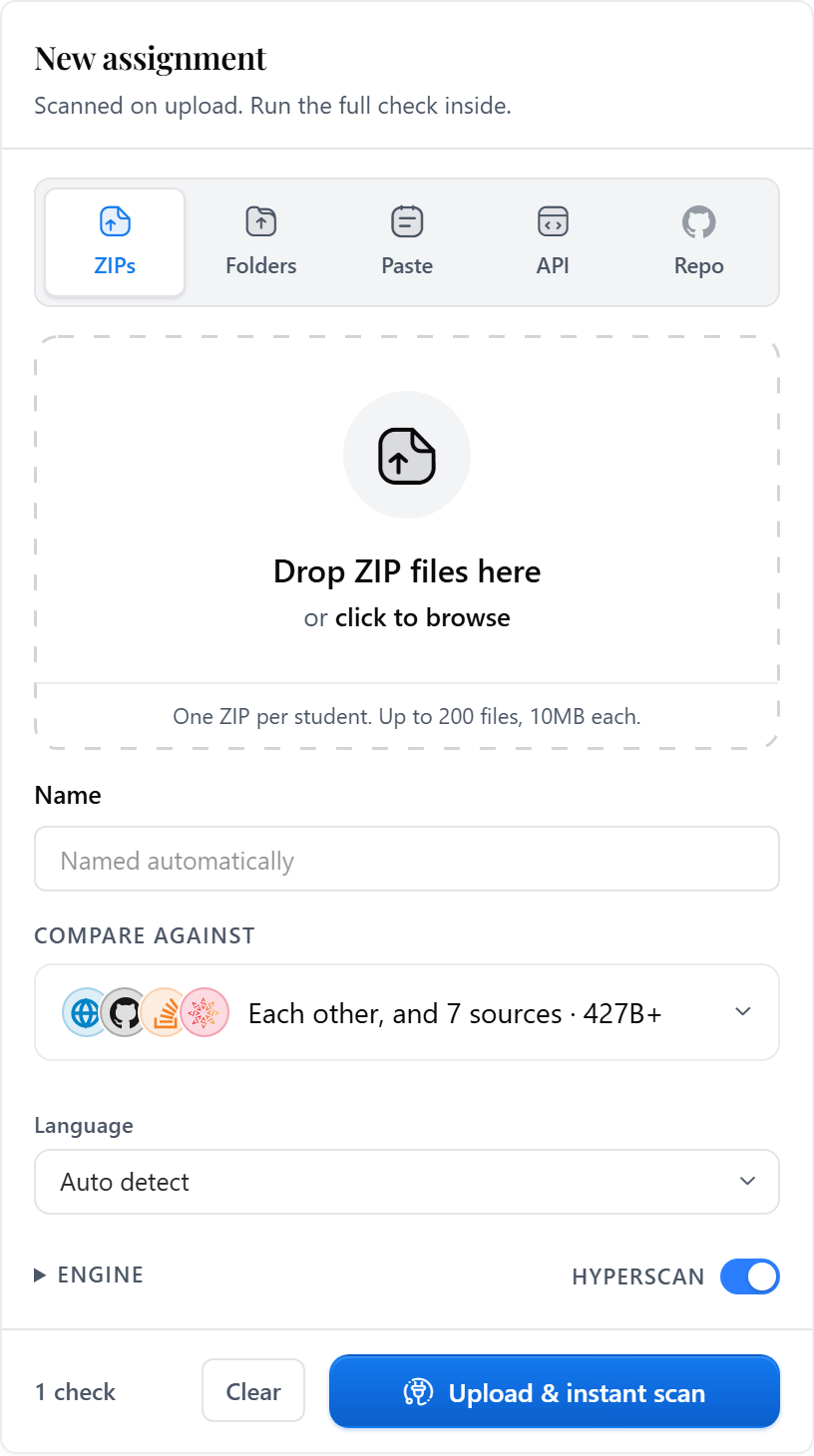
Comparing students only against each other needs at least two submissions. Creating an assignment doesn't use a check from your plan; a check is only used when you start it.
On Codequiry Free, the button reads Upload & start check and checks compare students against each other only.
Uploading files
Each submission is one student. The New assignment panel takes them five ways:
- ZIPs: one ZIP per student with their code files inside. Up to 200 files per check, 10 MB each.
- Folders: drop one folder per student, or several at once. We zip each one in your browser, so there's nothing to zip by hand.
- Paste: paste code straight in. Each tab becomes its own submission.
- Repo: paste public GitHub links, one per line.
- API: send ZIPs from your own scripts in one call. Your key is on the API keys page.
Rather have students hand in their own work? Share a student upload link. Working from your own machine? The desktop app takes folders and nested ZIPs as they are.
Collect work with a student link Signed in
Students can hand in their code themselves, without making an account.
- Create the assignment, then open its Students tab (the Student Portal).
- Copy the assignment's upload link and share it in your LMS, an email or on a slide.
- Students open the link, type their name and upload a ZIP.
Every upload lands in the assignment as its own submission, listed on the Students tab, ready for you to start the check.
Canvas and other LMS
Pick whichever fits your school:
- No IT needed: paste the assignment's student upload link into the Canvas assignment's description and set its submission type to No Submission, so work only comes in through Codequiry.
- LTI 1.3: a Canvas admin adds Codequiry as a developer key. Dynamic registration means it's one link to paste.
- LTI 1.1: an instructor adds it at course level with a consumer key and shared secret. This also suits older Canvas installs and other LMS platforms.
Team members Signed in
Open Team and press Invite Member. Enter one email, or several, one per line. Pending invites can be resent or cancelled from the same list. To remove someone, open the menu on their row and choose Remove.
Seats come with your plan, and the Team page shows how many you've used. If it says Upgrade to Add Team, your account has no paid plan yet. If it says Request team seats or Ask for more, your plan has no seats left, so compare what each plan includes on the pricing page.
Checks and results
Reading results
When a check finishes, press View Results. Each submission gets a similarity score: how much of that student's code also appears in another submission or source.
- Below 20% is typical for original work.
- 20 to 40% is often common patterns. Look at the top matches before moving on.
- 40 to 70% suggests code was shared.
- Above 70% is a red flag worth a close look.
A score isn't proof on its own. Starter code you handed out and common boilerplate can score high, so open the side-by-side view before deciding anything, and see Starter code and boilerplate.
The AI score is the chance the code was written by a tool like ChatGPT or Copilot. Above 70% on a submission strongly suggests AI authorship. Open the submission and read the highlighted lines the score rests on before acting.
Starter code and boilerplate Signed in
Handed out a template or starter files? Stop them pushing scores up:
- Open the assignment and go to its Settings tab.
- Turn on Auto-detect boilerplate code.
- Start the check (or run it again if it has already finished).
It discounts starter code, library setup and provided templates, so the score reflects what students actually wrote. In the results, when matches come only from starter code, the match list tells you and lets you hide them.
Export a PDF or CSV report Signed in
Open a finished check, go to its Peers tab and press Export Report. Pick the format you need:
- PDF Report for academic integrity meetings and your records.
- CSV to sort and filter scores in a spreadsheet.
- JSON for your own scripts and tools.
Supported languages
Codequiry checks code in 65+ programming languages, from Java, Python, C and C++ to JavaScript, C# and many more.
Leave Language on Auto detect when you create a check and it works the language out for you. If an assignment is all in one language, you can also pick it from the Language list yourself.
A check is stuck Signed in
Most checks finish in a few minutes. If one has been running much longer, open it:
- Stop Check stops it right away, and you aren't charged for the run.
- Force End appears after 15 minutes. It ends the check straight away, without waiting for results, for when one won't stop any other way.
Then press Start Full Check to run it again.
Signing in
Forgot your password
- Open the Reset password page.
- Enter the email on your account. We email you a reset link.
- Open the link within 60 minutes and choose a new password.
Not in your inbox after a few minutes? Check your spam folder. Still nothing? You may have signed up with a different address, so find your email first.
Forgot which email you used
On the Find my email page, enter the last 4 digits and the expiry date of the card you pay Codequiry with. Paid with UPI? Enter your UPI ID and the name on your account instead. If it matches an account, we show you a hint of the address and email it a reminder with a link to sign in.
No match? Check what you typed, or try another card you may have used.
Lost access to your email
Left a school, or the old inbox is gone? Move your account to a new address yourself, without signing in:
- Open Lost access to your email.
- Enter the last 4 digits and expiry of the card on your account, your name as it is on the account or the card, and the new email address.
- Type in the 6-digit code we send to the new address, then choose a new password.
Your checks, folders and plan all come with you. The old address gets a note about the change with a link to undo it, in case it wasn't you.
No verification email or code
Check your spam folder first, and search your inbox for "Codequiry". Then send it again:
- Already signed in: press Resend Email on the banner at the top of your dashboard.
Typed the address wrong? Fix it in Account settings and the new address gets the link.
Your account
Change your email Signed in
Open Account settings, enter the new address and your current password under Email address, and press Update email. Then verify the new address from the email we send it.
Can't sign in any more? Use Lost access to your email instead.
Your students' code and privacy
Plagiarism detection works by comparing new work against work seen before. Without the Rapid add-on, code you upload (including on a trial or Codequiry Free) is added in anonymised form to our matching database, so future checks can be compared against it. It stays there after an account is closed.
Want to keep code out of the matching database? Add Rapid from the Billing page before you upload. Code uploaded while Rapid is active stays out of it, even after Rapid ends, and you can delete it while Rapid is on, on top of Grow or higher.
The full detail is in Sections 5.4 and 6 of our Terms of Service and in our Privacy Policy.
Delete your account Signed in
Account settings can only delete an account that holds no uploaded code, or one with Rapid active on a plan (Grow or higher). Anything else is declined there, and support can't make an exception. Cancelling your subscription is the other way: it closes the account and deletes it.
If you can delete it:
- Sign in and open Account settings.
- Scroll to Delete account at the bottom.
- Type DELETE, enter your password and confirm.
Your account holds uploaded code and doesn't have Rapid? You have two choices:
- Cancel your subscription. Cancelling takes effect right away and permanently deletes the account with everything in it.
- Add Rapid from the Billing page, on top of Grow or higher. That makes everything deletable, including earlier uploads, and you can then delete the account. Rapid is charged the day you add it.
Deleting can't be undone. It removes all checks and results, submissions and uploaded files, folders, team members and invitations, active subscriptions, and API keys and integrations. It doesn't refund any payment.
Deleted code leaves our live systems and stops being used for matching from then on. Comparisons already made can't be undone, and backups expire on their own schedule. The full terms are in Section 6.3 of the Terms of Service.
Billing and plans
Free trials
New plans don't come with a free trial. Your card is charged when you sign up, and the plan's full quota of checks unlocks straight away.
If your account is already on a trial, it works as it did when you signed up:
- When the trial ends: your card is charged for the plan, the plan starts and its full quota of checks unlocks. That charge is final, see Refunds.
- Cancel before it ends: your plan is never charged. Cancelling ends the trial right away and permanently deletes your account. See Cancel your trial.
- The one thing that doesn't wait: the Rapid add-on. If you tick it at signup, it's charged that same day.
The Rapid add-on
Rapid is billed the moment you choose it. It is billed on top of your plan, and it needs a plan underneath it: Grow, Advanced or Defense.
At signup. The Rapid box is on the payment step and stays unticked unless you tick it. It shows what you'll pay today if you add it.
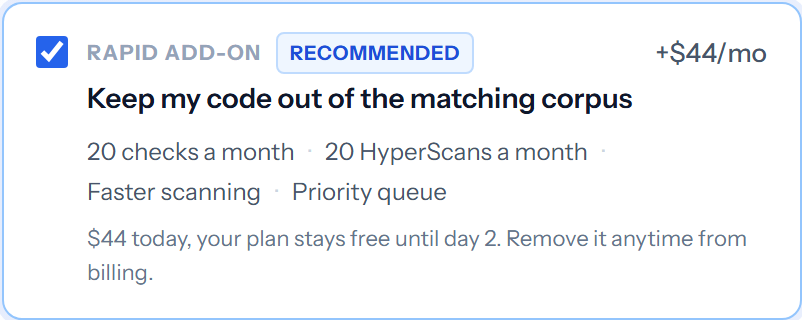
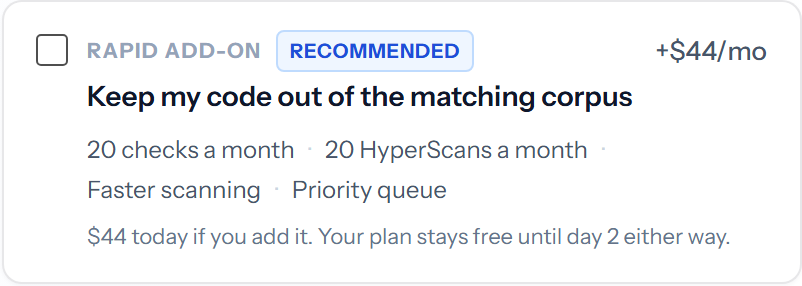
What you get while it's active:
- 10 web and AI checks a month, on top of your plan's
- 10 HyperScans a month
- A dedicated 16-core server, so your checks don't queue behind other customers
- Code you upload stays out of our matching database
- You can delete submissions, checks and courses, and your account
Rapid works on every plan, Defense included. Defense doesn't come with it, so add it there too if you want your code kept out and deleting turned on.
Adding it later. Press Add Rapid on the Billing page. It's charged that day, then every month. Code you uploaded before adding it is already in the matching database, but you can delete it once Rapid is on.
Stopping it. Press Cancel Rapid on the same page. While your plan is active, Rapid keeps working until the end of the billing period and your plan isn't affected. If Rapid is the only subscription on the account, cancelling it ends it right away and permanently deletes the account. The dialog tells you which applies before you confirm.
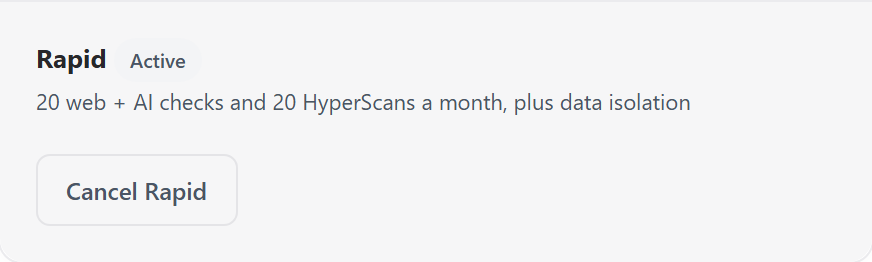
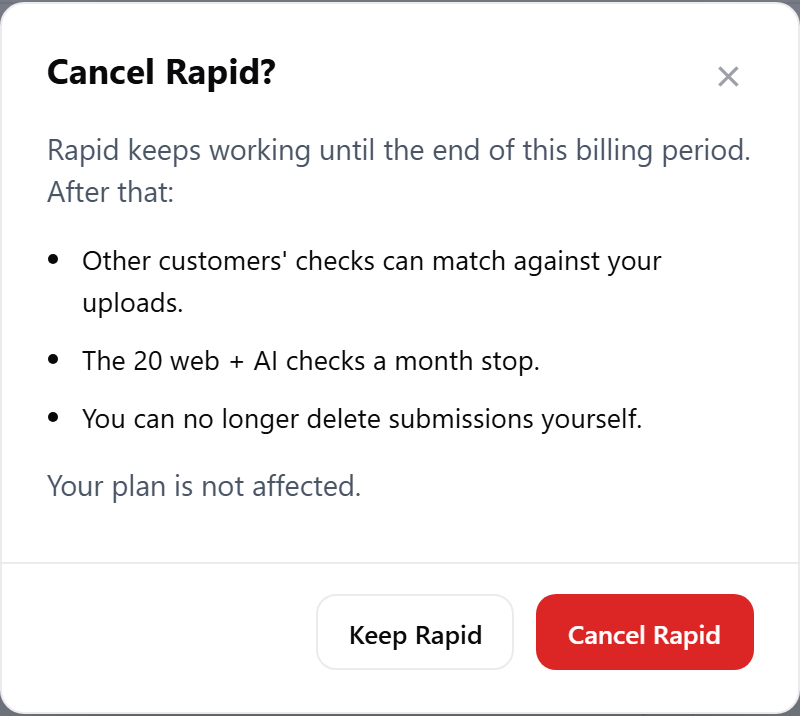
A Rapid charge can't be refunded once Rapid is on. Cancelling stops the next one. The full terms are in our Refund Policy and Section 6 of the Terms of Service.
Codequiry Free
Codequiry Free costs nothing and needs no card. It runs unlimited peer checks, which compare your submissions against each other.
New Codequiry Free accounts are closed for now. Accounts already on it keep working as below.
- Included: peer checks and their results. Each check needs at least two submissions.
- Comes with a paid plan: the web, GitHub, Gists, Stack Overflow, Software Heritage, the Codequiry library, AI detection and HyperScan.
Code you upload goes into our matching database, the same as on any plan without Rapid.
To add the rest, pick Grow, Advanced or Advanced + Defense from All plans on the Billing page. Any checks you bought work as normal until they're used.
Checks and HyperScans
Your plan comes with two separate balances:
- Checks: one check is a full run of an assignment, comparing classmates, the web and AI together. A check is only used when you start it, and a run you stop isn't charged.
- HyperScans: the quick automatic scan each file gets as you upload it, so early leads are waiting before the full check.
Each renewal adds your plan's checks. Running low? Press Buy checks on the Billing page to top up any time, or move to a bigger plan from All plans. If you cancel, your account is deleted and unused checks go with it, so use them first.
How billing works Signed in
Billing is fully automated. Your plan renews by itself at the start of each billing period and charges your saved payment method, and each renewal adds your plan's checks to your account. Nobody has to approve anything, and changes take effect straight away.
From the Billing page you can:
- Add, change or remove a card under Payment methods
- See and download every charge under Recent invoices
- Put your institution's name, address or tax ID on invoices under Invoice details
- Switch to another plan from All plans
- Buy more checks any time with Buy checks
- Add or cancel the Rapid add-on, which bills on its own, separately from your plan
- Add or remove Defense on an Advanced plan. It bills with your plan and needs Advanced. Adding it charges the rest of this period today; removing it stops it today and takes what's left off your next invoice
A payment failed Signed in
If a renewal doesn't go through, the Billing page says so at the top. Press Pay now to pay it, or Update card to add a different card first. Your plan carries on as soon as it's paid.
Cancel your trial or subscription
Without signing in: enter your account email on the cancel page, open the link we email you, and press Cancel and delete my account. That cancels everything on the account, Rapid included, and deletes the account.
Cancelling permanently deletes your account. It takes effect right away, not at the end of the period you've paid for. Every check, result, uploaded file and unused check goes with it. It can't be undone and we can't restore it, so download anything you want to keep first.
Signed in:
- Sign in and open the Billing page.
- Press Cancel trial or Cancel subscription, read the warning and confirm.
- On a trial: the trial ends right away, the plan is never charged and the account is deleted.
- On a paid plan: the plan ends right away and the account is deleted. The rest of the period isn't refunded.
- If you have Rapid: on accounts created since November 2026, Rapid ends with your plan, because it needs a plan under it. Accounts from before then can untick Also cancel Rapid to keep it, and the account then stays until Rapid is cancelled too. To stop only Rapid, press Cancel Rapid instead. A Rapid charge already made isn't refunded.
The account is deleted once no subscription is left on it. The full terms are in Section 10 of the Terms of Service.
Refunds
Refunds
We don't offer refunds. Once a plan starts, purchases are final.
When you sign up for a plan, your card is charged and its full quota of checks unlocks straight away. From then on the purchase is final, including checks you haven't used yet. On an account that's already on a trial, the same goes for the first charge when the trial ends, including if you forgot to cancel.
The Rapid add-on is charged the day you add it, and that charge is final too. Cancelling Rapid stops the next charge.
The full terms are in our Refund Policy and Section 11 of the Terms of Service.
Can't find it?
Try one word, like "card", "invoice" or "zip".
Still stuck? Email us at [email protected].